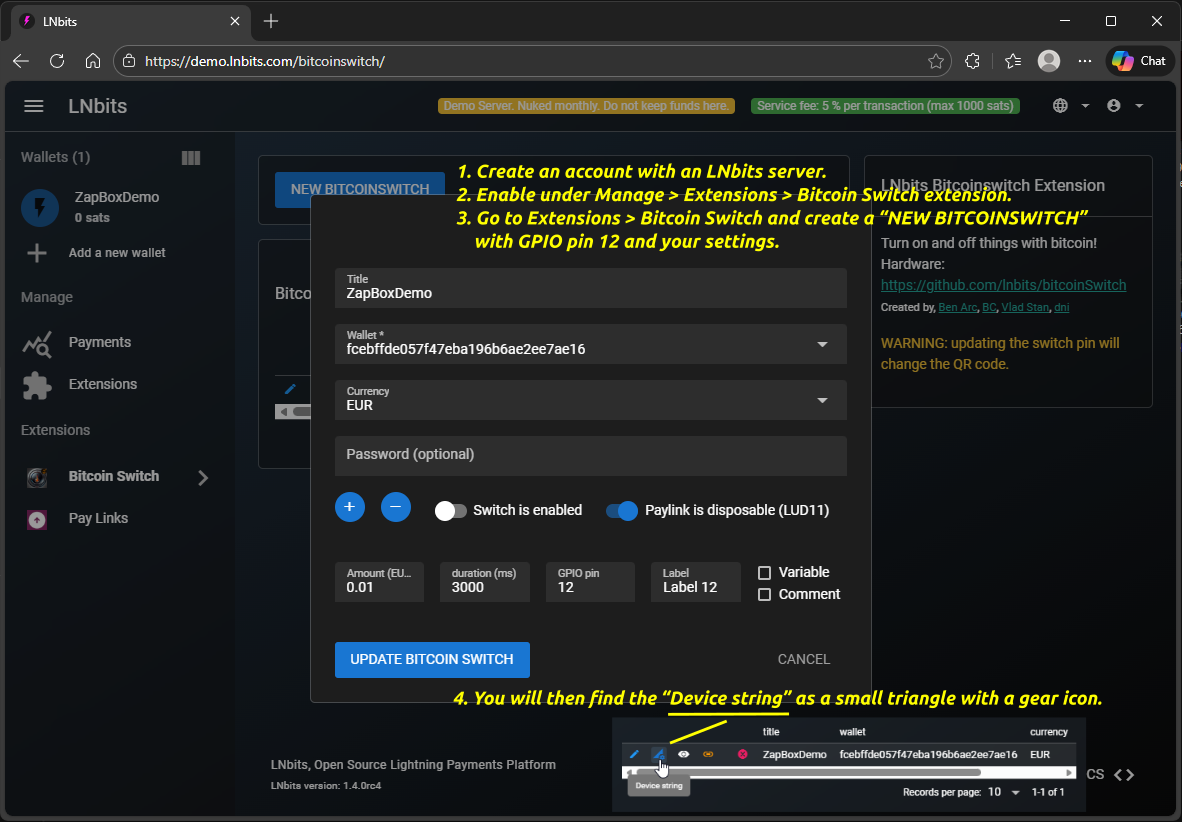
Use with LILYGO T-Display-S3 or alternatively with standard ESP32 as headless version
Note on the headless version: The headless version does not support display. The terminal window can be used for status monitoring and error analysis. LEDs connected to GPIO 21 and GPIO 2 (onboard LED) provide visual status feedback: 3 fast blinks on boot, fast blinking during initialization, slow blinking in config mode, solid ON when ready. Error states show distinct blink patterns: 1 blink = No WiFi, 2 blinks = No Internet, 3 blinks = No Server, 4 blinks = No WebSocket (each with 2 second pause between sequences).
Note: The configuration data can be deleted using "Erase device." Otherwise, it will be retained even with the new firmware. You can use LOGS & CONSOLE for debugging.
Flash the ESP32 with “Erase device.” After the start screen is displayed, the ZapBox will automatically enter “CONF / SERIAL CONFIG MODE”.
→ The ZapBox is now ready to receive configuration data.
If parameters have already been stored and need to be changed, you can also open CONF mode retrospectively:
Note: If data is already available and you start the connection manually, the connection will remain active for 3 minutes (180 seconds) before it is automatically disconnected. You can terminate the connection prematurely by pressing the NEXT button, touching the display, or pressing the external button.
Note on the headless version: On-board LED 2 and GPIO 21 (external ready LED) flash in CONF status.
Congratulations on configuring your own ZapBox! 🎉
Note: You can see the logs from the device in the black terminal window when you are connected. Below you will find additional optional functions and settings.
Note: QR code format is used to generate the QR code. Recommended bech32.
Note: The LED button YES function hides the texts HELP and NEXT on the display.
Function of the LED button - press:
• once => Change display / product
• once and hold => Help page
• several times => Report page
• once briefly and then hold at least 5 seconds => CONF page
Choose pulsing/blinking mode for relay control
Note: Special modes control how the relay switches during the configured duration. "Standard" means simple on/off. Other modes create pulsing/blinking patterns with configurable frequency and duty cycle.
NPN light barrier on GPIO 2 (T-Display-S3 only)
Multi-Channel-Control: Activate up to 4 GPIO pins (12, 13, 10, 11) with unique QR codes. Product labels and LNURLs are automatically retrieved from your LNbits switch configuration. Use NEXT button, touch gestures (swipe ←→) or external button (if available) to navigate between products.
Note on Multi-Channel Mode: Not compatible with the Threshold feature. Please disable it.
Note on selecting "Vending machine with light barrier": A trigger from the light barrier stops the action after 2 seconds at the earliest.
Control when Bitcoin price/block info is shown
E.g. USD, EUR, GBP, JPY, CHF, TRY, CAD, BRL, CUP, etc.
OFF: No ticker shown (Duo/Quattro: productSelectionScreen; Single: only QR code)
ON - always: Ticker overlays screen, navigate with NEXT/swipe to show products temporarily (returns after timeout)
ON - when selecting: Single: Ticker only visible for a short time after NEXT/swipe. Duo/Quattro: productSelectionScreen → products → ticker (at end of product cycle)
leave empty for normal mode (default)
placeholder
12 (default)
Note: As soon as something is entered in the "Wallet Invoice/Read Key" field, "THRESHOLD MODE" becomes active. "NORMAL MODE" then no longer works. The data specified in the bitcoinSwitch extension, such as amount, PIN, and time, is ignored. Only a payment to the wallet with the invoice key counts.
How can I use this? Either by receiving payment directly into the wallet or by using the "Pay Links" extension. There you can get a static LNURL and even a lightning address. Payments to these addresses then trigger the pin, provided the threshold value is reached or exceeded.
1-120 minutes
Note: Screensaver and Deep Sleep cannot be active simultaneously. Press BOOT button or HELP button to deactivate and resume normal operation.
Note: With the T-Display-S3 with touch, the screensaver mode can be used because the touch function remains active. Deep sleep disables touch wake-up for maximum power savings.
Use Cases: Energy saving (screensaver ~80-90% and deep sleep up to ~99%), reducing device heat, extending display lifespan in always-on scenarios.
The ZapBox features a hierarchical error detection system with automatic diagnostics. Errors are displayed on screen with abbreviations:
| Priority | Error Type | Abbreviation | Description |
|---|---|---|---|
| 1 (Highest) | NO WIFI | NW | WiFi network not connected → Wifi data correct? → WiFi signal too weak? |
| 2 | NO INTERNET | NI | Internet connectivity lost → Internet accessible? |
| 3 | NO SERVER | NS | LNbits server unreachable → Server down or "Device settings string" correct? |
| 4 (Lowest) | NO WEBSOCKET | NWS | WebSocket protocol/handshake failure → Bitcoin Switch parameter correct? → "Device settings string" correct? |
Note: Higher priority errors override lower priority error displays. For example, if WiFi is down, all other checks are skipped and only "NO WIFI" is shown.
All errors with their occurrence counts (0-99) are logged on the Report page. To access the Report page:
Note: The headless version (ESP32 Dev Module without display) does not have access to the Report page. Use the serial terminal to monitor errors.
If a wallet scanning the QR code shows an error message, here's what it means:
"bitcoinswitch ... is disabled" → The Bitcoin Switch was actively disabled in LNbits
"No active bitcoinswitch connections" → The handshake between the wallet and ZapBox failed. -> Wait or restart the ZapBox to re-establish the connection.
Relay does not switch, but payment was successful → Wrong GPIO pin configured in LNbits?
If something doesn't work properly, especially the serial communication "📖 Read Config", then simply try again. If that does not help, refresh the website 🔄 with CTRL+F5 or CTRL+SHIFT+R and start over.
If non of the above works, reset board in boot mode and start over.
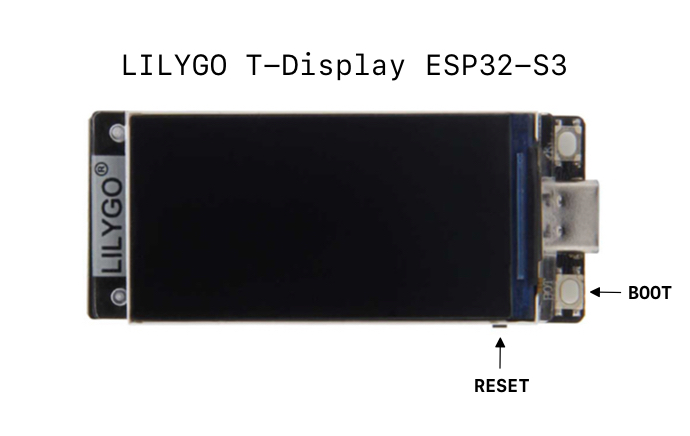
If you're experiencing strange problems with the ESP32 that could have various causes, try starting from scratch. Erase the complete flash memory and restore the ESP32 to its factory state. The easiest and safest way to do this is with ESP Tool.
https://espressif.github.io/esptool-js/
→ Press: Connect > Erase Flash
Note: Only one serial connection can be active at a time. Disconnect the active connection on the other side by refreshing the page. Please follow the same steps after clearing the memory using the ESP tool page so that you can use the ZapBox Web Installer again.
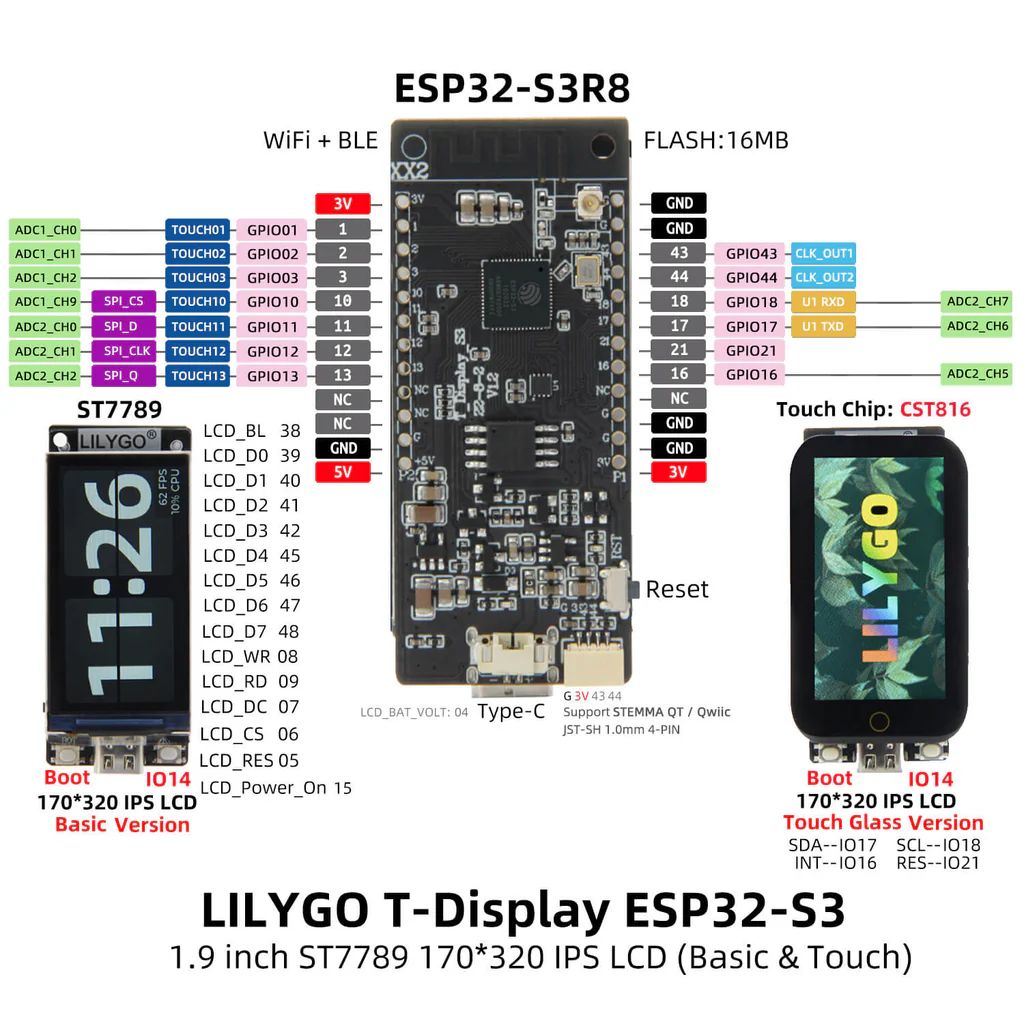
Source: lilygo.cc
Important note for CP2102 communication chip: After connecting to the Web Installer, the ESP32 must be completely disconnected from power once for it to start properly again. This phenomenon does not occur with the CH340C communication chip, but it is recommended to do this for all headless chip types.
Affected: Standard ESP32 boards with CP2102 USB-to-Serial chip
Symptom: LED blinks in a repeating pattern: 3× very fast (boot indicator), then 5 seconds fast blinking, then repeats. This indicates a reset loop.
Workaround: After using the Web Installer (connect/disconnect), unplug the USB cable and reconnect it to reset the device properly.
Not affected: ESP32 boards with CH340C/CH340G chips work without issues.